Why does fitting an AVIF under a size limit take several tries?
A file-size limit looks like one setting, but fitting an AVIF can take several complete tries. FluffyBench has to make each file before it knows whether it fits.
Why can't an AVIF quality setting promise a file size?
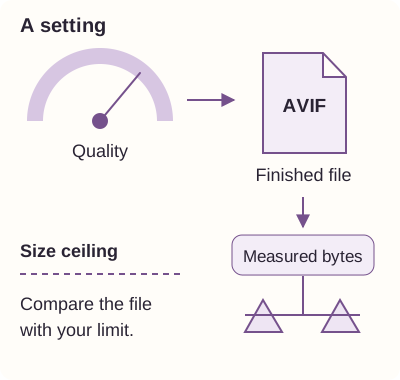
Think of an upload limit like an airline's luggage allowance: a bag that looks small still has to be weighed. An AVIF quality setting is a dial; you learn the file's size after it's made.
How FluffyBench finds an AVIF that fits
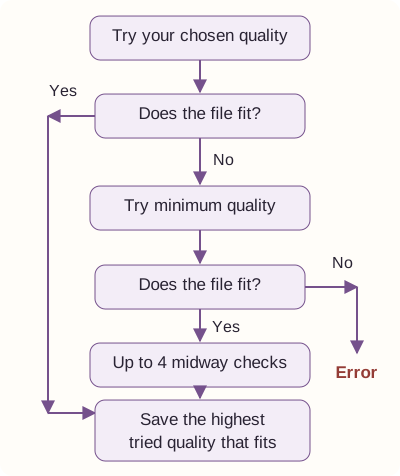
FluffyBench starts at your chosen quality. If that AVIF fits, you're done; a size target doesn't always need several tries.
One AVIF size search, shown in six tries
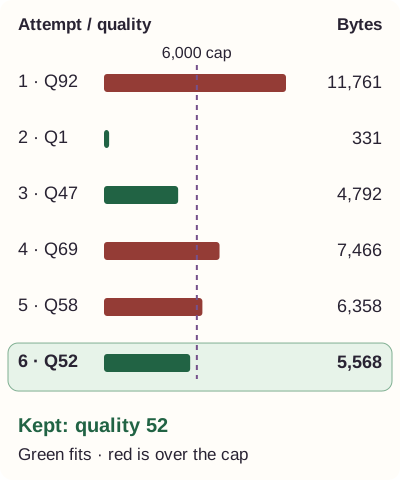
In an earlier recorded search using a generated image, FluffyBench met a 6.0 KB ceiling with quality 52, producing a 5.6 KB file. It took 6 tries to get there.
Doing it in FluffyBench: set an AVIF size limit
Use FluffyBench's AVIF converter when you need an AVIF for a destination with a file-size cap. FluffyBench's Image Space Saver is an alternative when you're choosing a format or reducing dimensions to meet an upload rule.
For a still photo, here's the path from choosing your image to saving the AVIF. Set the cap your destination gives you before you convert.
-
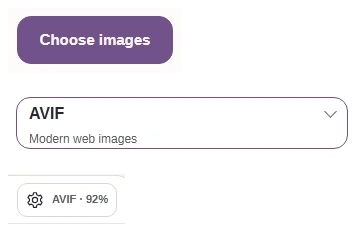
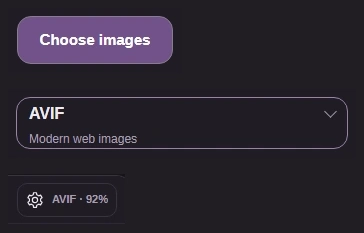
Step 1. Add your photo with Choose images, keep To on AVIF, and open Settings. Keep your original as you make this copy. - Choose images adds your photo.
- Keep To on AVIF for this job.
- Open Settings with the gear.
-
-
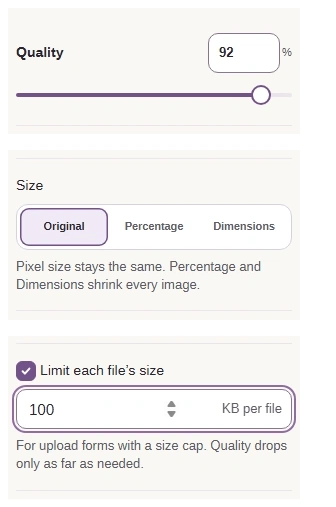
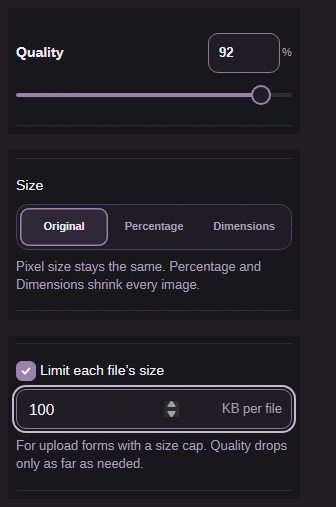
Step 2. Quality sets the starting point. The size limit lets FluffyBench lower quality to fit your cap. The 100 KB shown is an illustration: use your destination’s limit. - Leave Quality at 92 for this example.
- Original keeps your photo’s pixel dimensions.
- Enable Limit each file’s size and enter your cap in KB per file.
-
-
Step 3. Close Settings with the gear on a phone, then press Convert. - Click the gear again to close Settings on a phone.
- Press Convert to start the size search.
-
-
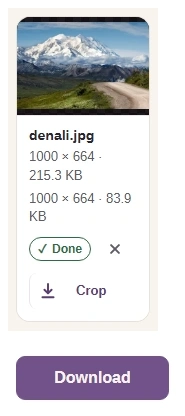
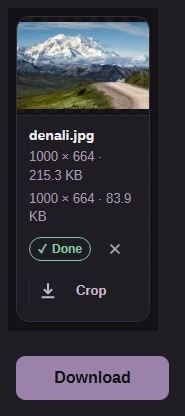
Step 4. Read the output size, then Download your copy. Open the saved AVIF to check fine detail and try it in the destination that needs it. - The thumbnail identifies your converted photo.
- Read the finished AVIF’s dimensions and size.
- Download saves your AVIF copy.
-
If your destination writes its limit in KiB, FluffyBench's data-size converter helps you translate that limit into the KB field. If the destination won't open AVIF, a small enough file still won't work there; our image-format compatibility guide can help you choose a format it can open.
Need to set a file-size target for an image?
Ready to apply a size target to an AVIF?
What if FluffyBench can't reach your AVIF size limit?
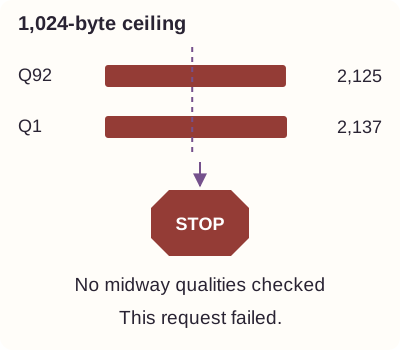
FluffyBench reports an error when its minimum-quality attempt is still too large. In this earlier recorded request, both files it made exceeded the ceiling.