
Why can a small WebP file still fail to convert?
A tiny download can turn into a much bigger picture once your browser opens it. Here's why pixel dimensions matter more than file size, and what to do when a conversion fails.
Why can a small WebP turn into a big picture?
Think of a WebP as a folded map. The file you download is the map folded up small, but to resize or convert it, your browser has to unfold the whole picture first. From then on, what counts is how big the picture is, not how many bytes it took to download.
That size is measured in pixels, the tiny colored dots that make up a picture. Width and height count the dots along each edge, and multiplying them gives the total.
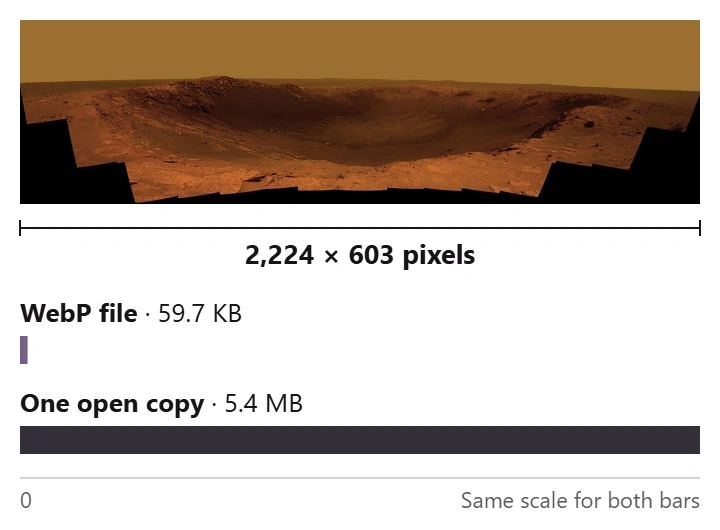
Here's a real example: a wide NASA panorama of a crater on Mars, as the WebP file you'd download and as one open copy in memory.
One panorama, packed and open
- The picture
2,224 pixels wide and 603 tall, about 1.3 million in all.
- The file
59.7 KB: what you download.
- One open copy
5.4 MB: 4 bytes for every pixel once it's unfolded.
And that's a single copy, before anything new has been written.
What stops a WebP from converting? Usually memory
When you turn a WebP into a JPG, PNG or anything else, the limit you can hit is memory. Your browser has to hold the open picture while it works, and it shares memory with everything else on your device. Phones have less to give than computers.
FluffyBench's converters warn you when a picture this big is added. Here's a WebP of about half a megabyte, 16,000 × 4,338 pixels, added to FluffyBench's JPG converter.
-
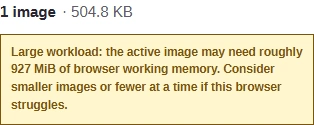
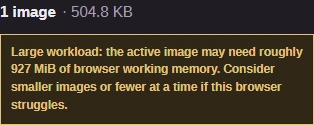
Step 1. A WebP of about half a megabyte, 16,000 × 4,338 pixels, added to FluffyBench's JPG converter. The warning appears as soon as the file is added, before anything is converted. - The file you added: about half a megabyte.
- The memory it may need once it's open.
-
The warning doesn't stop the job; it tells you this picture may be too much for your browser. If the conversion fails or the tab struggles, make the picture smaller in pixels as you convert, with the Size setting in FluffyBench's converters. For more on memory and huge pictures, see our guide to where a browser spends time on a huge photo.
Saving as WebP? Two more limits apply
These two limits only matter when WebP is the format you're saving to. A WebP you already have is under the side limit; it bites when you save a bigger PNG, JPEG or TIFF as WebP.
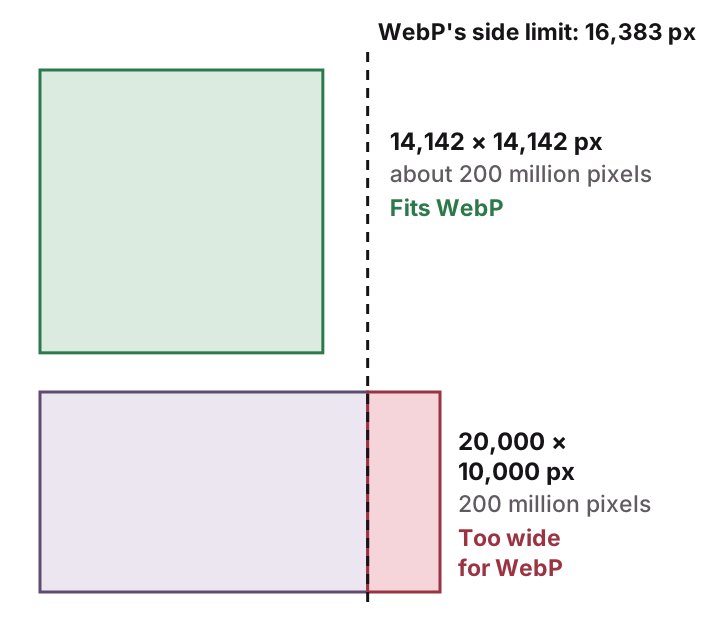
Two pictures can hold the same number of pixels and still get different answers. Here are two shapes of about 200 million pixels each, drawn to scale against WebP's side limit.
Same pixel count, different shapes
- WebP's side limit
No side of a WebP can be longer than 16,383 pixels. That rule belongs to the format, so it applies in every app.
- Fits
14,142 pixels on each side, under the limit.
- Too wide
20,000 pixels across: too wide to save as WebP, even with the same total.
Longest side. WebP can't store a side longer than 16,383 pixels, as the WebP FAQ explains. A long, narrow picture can hit that limit while a square one with more pixels fits.
Total pixels for lossless. FluffyBench caps lossless WebP, the setting that keeps every pixel exactly, at 128 million pixels on a computer and 96 million on a phone. Our lossless WebP guide explains what that setting changes.
Here's what that looks like: a panorama of 22,240 × 6,030 pixels, about 134 million, with Compression set to Lossless in FluffyBench's WebP converter.
-
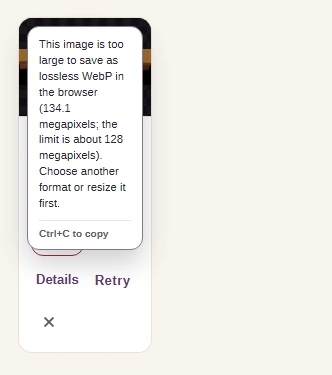
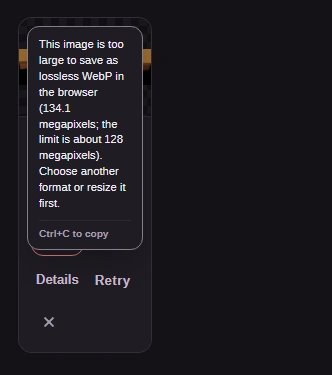
Step 1. Lossless WebP on a picture past the cap: the job stops with this message instead of a file. - The picture's size, the limit, and what to do instead.
- Details shows the whole message.
-
Big doesn't mean doomed, though. An 8.6 MB JPEG of 12,240 × 16,320 pixels, about 200 million pixels with its long side just under the limit, became a WebP of about 1.8 MB in both Chrome and Firefox on a desktop computer.
Doing it in FluffyBench: resize the picture as you convert
Whichever limit you hit, the fix is to make the picture smaller in pixels as you convert. For a WebP save, bring the longest side to 16,383 pixels or less. Turning a WebP into something else? FluffyBench's JPG converter and PNG converter have the same Size setting. The converter still opens the original first, so this works when your browser can open the picture but can't finish the job at full size.
Here's the whole job in FluffyBench's WebP converter, bringing that 22,240-pixel-wide panorama down to 8,000 pixels wide.
-
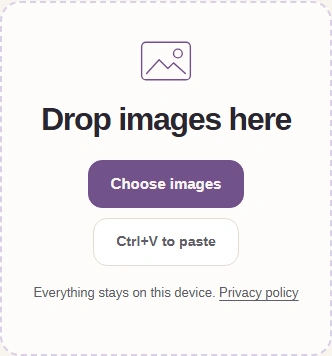

Step 1. Open FluffyBench's WebP converter and add your picture with Choose images. - Choose images adds your picture.
-
-


Step 2. Settings holds the output options. Its label sums up the current choices. - Tap Settings to open the options, and again to close them.
-
-
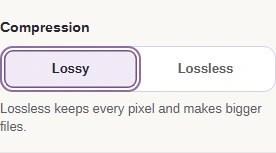
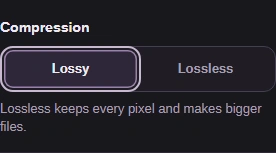
Step 3. Compression: Lossy makes much smaller files. Lossless keeps every pixel but has a pixel cap of its own. - Leave Lossy on for a very large picture.
-
-
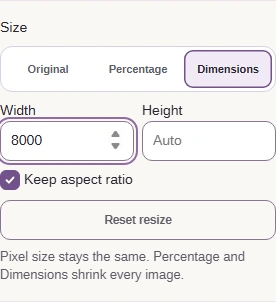
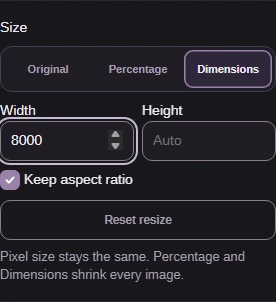
Step 4. Size: choose Dimensions and type the longest side, at most 16,383. Keep aspect ratio works out the other side. - Dimensions opens Width and Height.
- Type the longest side: Width for a wide picture, Height for a tall one.
- Keep aspect ratio works out the other side.
-
-


Step 5. Close Settings and convert. The picture is resized as it's saved. - Convert starts the job.
-
Got a whole folder to shrink? FluffyBench's Image Space Saver resizes and converts many photos in one run. One thing works differently there: when a file would come out as a WebP with a side longer than 16,383 pixels, Image Space Saver saves it as PNG instead and adds a note saying so.
Need to resize a whole folder before saving WebP?
Check the saved file's size and dimensions
A finished job means a file was saved. Before you use it, make sure it's the file you need, with the width, height and size you expected.
When the job finishes, FluffyBench's WebP converter shows the original and the new file together in its result card.
-
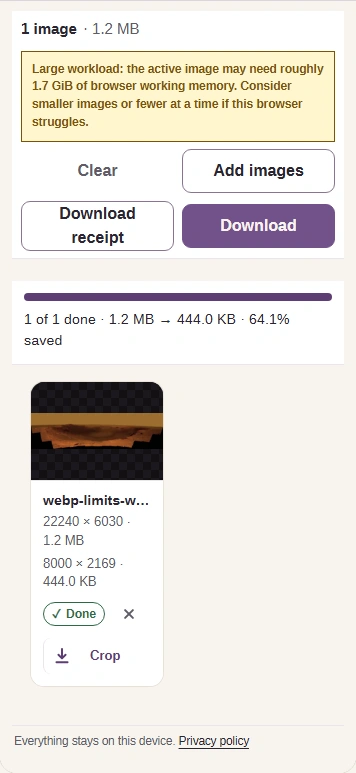
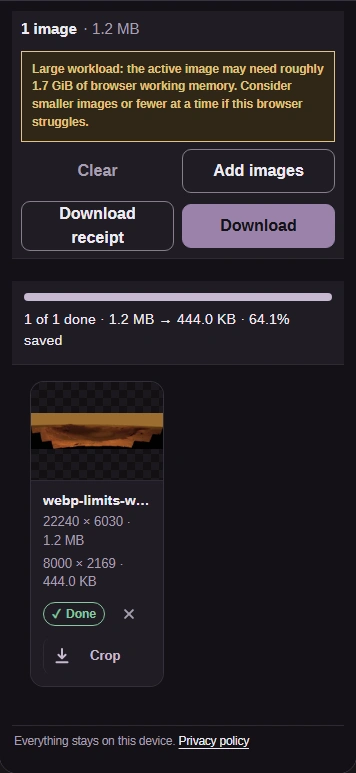
Step 1. The result card lists your original first and the new file below it. Download saves the new file, with a name ending in .webp. Keep your original until this one checks out. - Your original's width × height and size.
- The new WebP: check its width × height and size.
- Download saves the WebP.
-