
What is a WebP file, and why did my image save as one?
Downloaded a WebP when you expected a JPG? WebP is an image format websites use to send smaller pictures; you need to convert it when your app asks for something else.
What is a WebP file?
WebP is an image format: a way to store a picture's information in a file, just as JPG and PNG are. It can hold a photo, a drawing, see-through areas, or an animation. So finding .webp on a downloaded picture doesn't mean you've downloaded the wrong thing.
Think of an image file as a package. The picture's information is inside; the filename ending is a tag telling an app what to expect.

Why did a website send WebP from a JPG link?
Websites use WebP because it can make pictures smaller to send without making them look much different. The site may keep several versions of a picture and choose one your browser can display. That choice happens while the page loads; you don't need to request a WebP yourself.
A JPG-looking address tells your browser where to ask for a picture. A website can answer that request with WebP, so the saved copy can be WebP too.

Why doesn't renaming WebP make it a JPG?
Changing picture.webp to picture.jpg changes the package tag, not the picture inside. In this real example, FluffyBench's JPG to PNG refuses the renamed WebP; FluffyBench's Any image to PNG recognizes the same contents.

FluffyBench JPG to PNG: refused

FluffyBench Any image to PNG: Done
If someone has already changed the ending, FluffyBench's Any image to PNG can read the contents and make a PNG copy. A conversion writes the image in the new format, which is what a destination that asks for JPG or PNG needs.
Can you use WebP, or do you need JPG or PNG?
The app or website where you'll use the picture decides whether conversion is useful. If it opens your WebP, you're done; if it asks for a different format, make that copy.

If you're wondering about viewing WebP on the web, the browser image-format guide covers that question.
JPG fills see-through areas with a solid color. For a clear background, FluffyBench's WebP to PNG keeps transparency with PNG encoding left on Browser default, as in the right-hand copy below.

WebP source

JPG: white fill

PNG: Browser default
If your WebP moves, FluffyBench's JPG and PNG outputs keep its first frame. When you need the movement, use the animation conversion guide to choose a format that keeps the animation.
Doing it in FluffyBench
For a destination that asks for JPG, open FluffyBench's WebP to JPG. For a PNG requirement or a clear background, open FluffyBench's WebP to PNG. Each link opens with that output already chosen.
Here's the WebP-to-JPG job in FluffyBench, using the flower above. Keep the original WebP alongside your converted copy.
-

Step 1. Add the WebP you want to convert. - Choose images opens your file picker.
-
-


Step 2. Open the JPG settings before converting. - Open Settings to see the fill color.
-
-
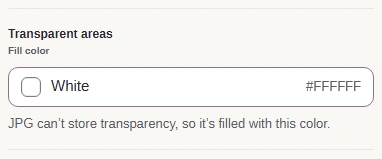
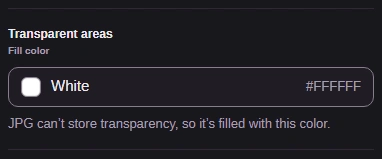
Step 3. Use the default White fill for the JPG pictured above. - Leave Fill color on White.
-
-


Step 4. Create the JPG copy with these settings. - Press Convert 1 to JPG.
-
-
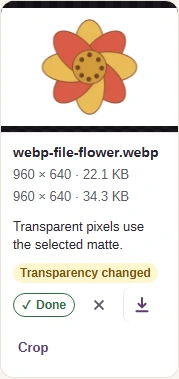
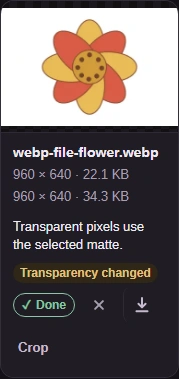
Step 5. Check the picture and output size, then save your JPG copy. - Check the petal edge and background.
- Read the output size on the second line.
- The download arrow saves the JPG.
-
The PNG route uses the same Choose images, Convert and download controls. Your destination app is the final check: the saved picture needs to open there, look right and meet any upload-size limit. Converting won't bring back detail a smaller, lossy image has already discarded.