
Should you use QOI or PNG?
QOI can keep every pixel and still make a bigger file. Choose PNG for everyday sharing; consider QOI when you control the app or game opening it.
QOI or PNG: which fits your job?
QOI (Quite OK Image) is a lossless format: opening it restores every pixel of the picture it stored. PNG is the safer handoff when you don't know what the receiving app can read; QOI fits a game or app whose image handling you control.
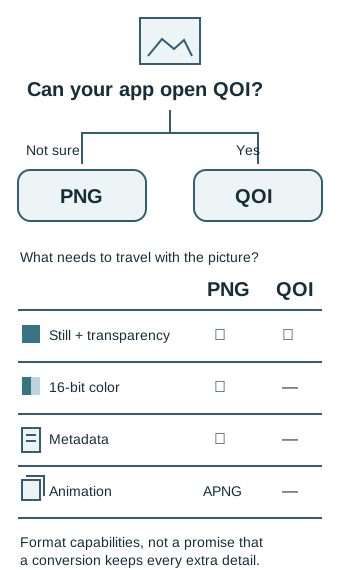
QOI stores one still image with 8-bit color values, with or without transparency. PNG can go up to 16 bits per color channel, keeping finer color values when your source has them. PNG also has room for metadata—the camera notes and other information attached to a picture.
If those extras matter to your handoff, read about image metadata or keeping animation during conversion.
Why would an app use QOI?
Think of QOI's lossless storage like a row of colored tiles: you can describe the next tile as “same as the last one” and rebuild the same picture.
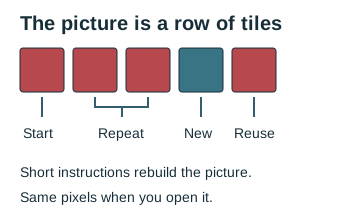
QOI uses short instructions for repeats, recent colors and small color changes. Its straightforward file rules make the code that reads and writes it small enough for a developer to understand. That's useful in an app or game with its own image pipeline.
Will QOI make the file smaller?
We made fresh PNG and QOI copies of one interface screenshot that was already a PNG, using FluffyBench's Advanced local encoder for the new PNG. The QOI copy was about 21% larger than the new PNG copy; all three keep the same visible picture.

Doing it in FluffyBench: inspect QOI or make a PNG copy
FluffyBench's Image Viewer opens the QOI on your device. On a phone, Image info holds the details and the conversion handoff; on a larger screen, they're beside the picture.
-
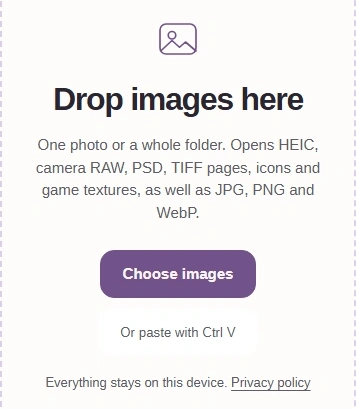
Step 1. Choose a QOI in FluffyBench’s Image Viewer. - Choose images opens your device’s file picker.
-
-
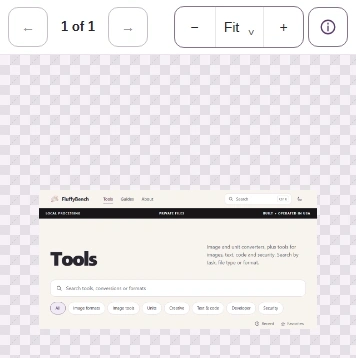
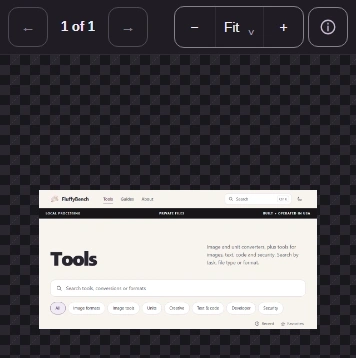
Step 2. Open Image info on a phone. - Image info opens the format and size details.
-
-
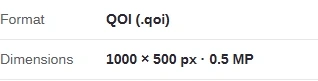
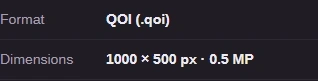
Step 3. Read the QOI's format and dimensions. - Format identifies QOI.
- Dimensions gives the pixel width and height.
-
-
Step 4. Send the QOI to FluffyBench’s PNG converter. - Convert this image opens the QOI in the PNG converter.
-
FluffyBench's PNG converter makes the copy. Choose Advanced local encoder with the settings shown here to use the same PNG encoding as the size comparison above.
-
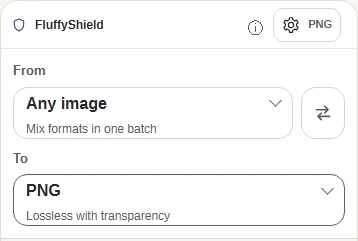
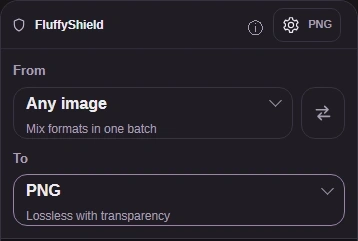
Step 1. In FluffyBench's PNG converter, confirm To is PNG and open Settings. - To identifies PNG as the output.
- Settings opens the size and encoding controls.
-
-
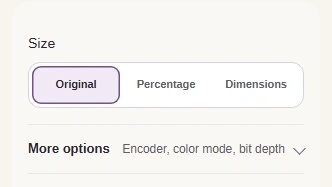
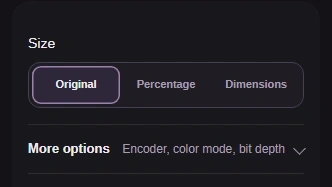
Step 2. Keep Size at Original, then open More options. - Original keeps the QOI's width and height.
- More options reveals PNG encoding settings.
-
-
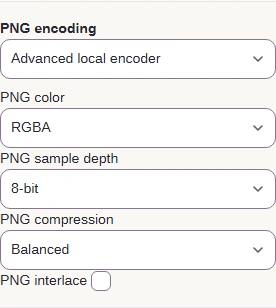
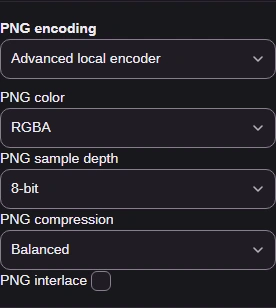
Step 3. Choose Advanced local encoder and leave the other PNG settings as shown. - Advanced local encoder chooses how the PNG is compressed.
- RGBA keeps color and transparency.
- Balanced uses moderate compression effort without changing pixels.
-
-
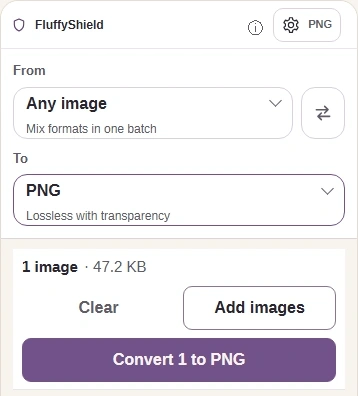
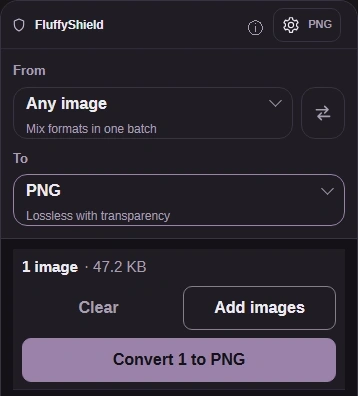
Step 4. Close Settings, then make the PNG copy. - Tap Settings again to close its panel.
- Convert 1 to PNG creates your PNG copy.
-
-
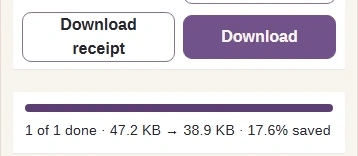
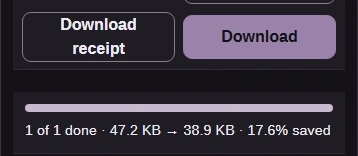
Step 5. Check the PNG result and save it to your device. - Compare the input and PNG output sizes here.
- Download saves the PNG copy.
-
Keep the QOI until you've opened the PNG in the app you're sending it to.