PNG options here: browser or advanced encoder; RGBA, RGB, grayscale or indexed color; 8- or 16-bit; Fast, Balanced or Maximum compression; interlacing. Which PNG settings are worth changing?
How it works
Choose images
→Choose the output size
→Convert to PNG
→Download your copies
JPG, HEIC and WebP inputs
Make PNG copies for an editor or upload that needs them.
Transparent PNG output
Keep an existing cutout's see-through edges with RGBA.
One image or a group
Save one PNG or package completed copies in a ZIP.
Limits PNG won't remove an existing background.
Need a PNG for an editor or upload?
FluffyBench turns your images into PNG copies and can keep existing transparent edges. You can keep the pixel size or make a smaller copy to fit your destination.
FluffyBench · 8 min read · Reviewed
When should you convert an image to PNG?
Choose PNG when your editor or upload form asks for it, or when you need a copy with existing transparency. PNG is an image format that can keep sharp text and see-through edges.
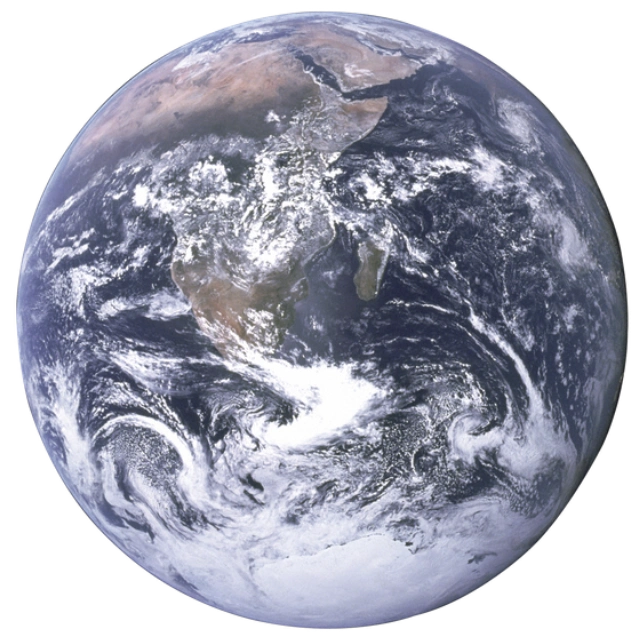
A transparent cutout acts like a sticker with no paper around it: its edges blend into the background you put it on.
12
Checkerboard background
3
Dark background
1
See-through corners
The checkerboard is behind the image, not part of it.
2
Soft rim
Partly transparent pixels let some background show through.
3
A different surface
The same cutout blends into dark gray without a white rectangle.
Transparency illustration using the same WebP cutout on two backgrounds. How we reviewed · Photo: NASA, Public domain, NASA-created image, via Wikimedia Commons.
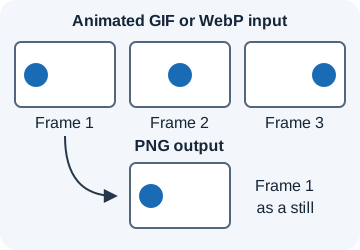
For an animated GIF or WebP input, FluffyBench's PNG converter saves a still of the first frame.
Motion becomes one still
Illustration: the PNG keeps frame 1; the later positions don't become part of the output.
Step 2. Press Convert after choosing any optional dimensions or color settings.
1
Convert makes PNGs using your chosen settings.
12
12
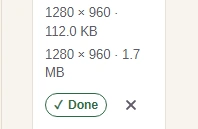
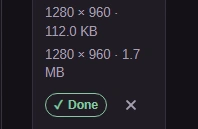
Step 3. Compare the output size with your destination's file limit.
1
The upper readout is the source size.
2
The lower readout is the converted PNG size.
1
1
Step 4. Download saves a single finished PNG to your device.
1
Download saves your PNG copy.
1
1
Step 5. For several images, save the finished PNGs with Download all (ZIP).
1
Download all (ZIP) packages the completed PNG files.
Need specific PNG dimensions?
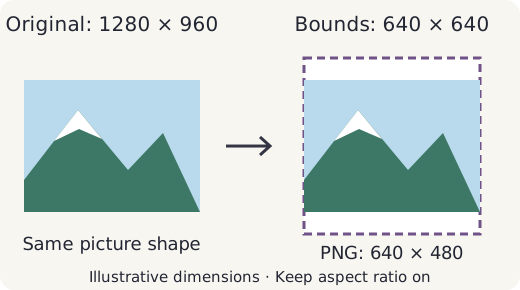
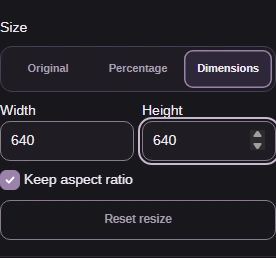
This is the optional sizing branch to use before Convert. Pixel dimensions describe the picture's width and height; the KB or MB readout tells you its file size. A photo and a flat logo can share the same dimensions and take different amounts of space.
With Keep aspect ratio checked, Width and Height form a box the picture fits inside. A rectangular photo stays rectangular even when the bounds are square.
Dimensions are bounds, not a new shape
You can also enter one dimension and let FluffyBench calculate the other. Unchecking Keep aspect ratio lets Width and Height stretch the picture.
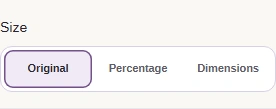
Original keeps the existing pixel size. Dimensions is for a destination that gives you a width or height requirement.
1
1
Step 1. Open Settings with the PNG gear button.
1
The PNG gear button opens and closes Settings.
12
12
Step 2. Keep Original, or choose Dimensions for a required pixel size.
1
Original keeps the source width and height.
2
Dimensions opens Width and Height.
123
123
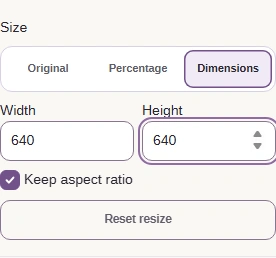
Step 3. Set Width and Height as bounds, with Keep aspect ratio checked. Close Settings with the PNG gear button.
1
Set Width to 640.
2
Set Height to 640.
3
Keep aspect ratio preserves the picture’s shape.
Shrinking the picture gives PNG fewer pixels to store. Larger dimensions enlarge the picture without adding detail, so an upload's minimum dimensions aren't a way to repair a blurry source.
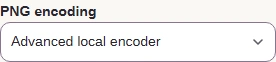
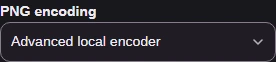
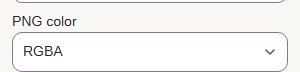
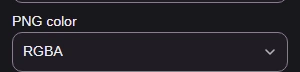
For an ordinary cutout, FluffyBench's Browser default keeps existing transparency. The optional Advanced local encoder gives you a color choice; RGBA includes alpha, which stores how see-through each pixel is.
RGBA keeps the Earth cutout's transparent rim. RGB (no alpha) replaces the see-through area with white.
Source and two PNG color choices
Rendered for illustration with FluffyBench; matching rim crops on the same dark background. · Photo: NASA, Public domain, NASA-created image, via Wikimedia Commons.
Here's the optional route to the PNG color control in FluffyBench.
1
1
Step 1. Open Settings with the PNG gear button.
1
The PNG gear button opens and closes Settings.
1
1
Step 2. In Settings, open More options for the PNG controls.
1
More options reveals PNG encoding.
1
1
Step 3. Choose Advanced local encoder for color, depth and compression choices.
1
PNG encoding selects Browser default or Advanced local encoder.
1
1
Step 4. Choose RGBA for a full-color PNG with transparency. Close Settings with the PNG gear button.
1
Choose RGBA to keep the source’s transparent edges.
Photos can grow a lot: our Denali JPG grew to about 6.5 times its original size when converted to a browser-default PNG, from 215.3 KB to 1.4 MB. Photos have many subtle color changes for PNG to store; flat areas in screenshots offer more repeating patterns.
Denali photo · source JPG
Source
215.3 KB
PNG, browser default
1.4 MB
The browser-default PNG was larger than the source JPG. This is a photo example; screenshot and existing-PNG results are in How we reviewed.
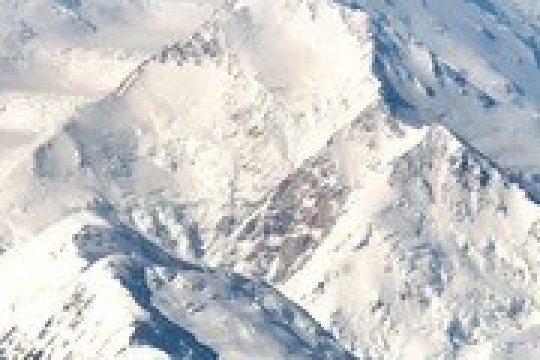
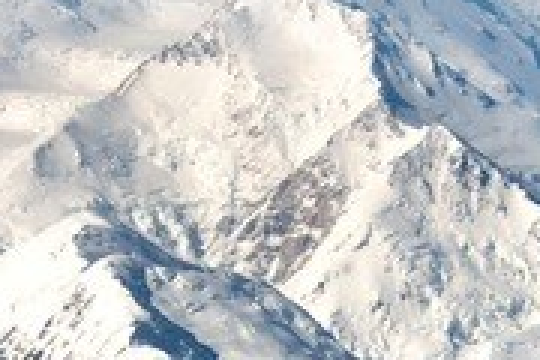
Saving a JPG as PNG doesn't repair detail the JPG has already lost. These matched crops show the same snowy ridge before and after conversion.
1
Source JPG
23
Browser-default PNG
1
Existing detail
Earlier JPG compression marks remain.
2
PNG copy
Changing the format doesn't add mountain detail.
3
More space
PNG saves that existing detail.
Rendered for illustration from a separate Denali JPG with FluffyBench's browser-default PNG setting; not the file used in the size bars. · Photo: NPS Photo / Tim Rains, Public domain, via National Park Service.
Check your PNG before using it
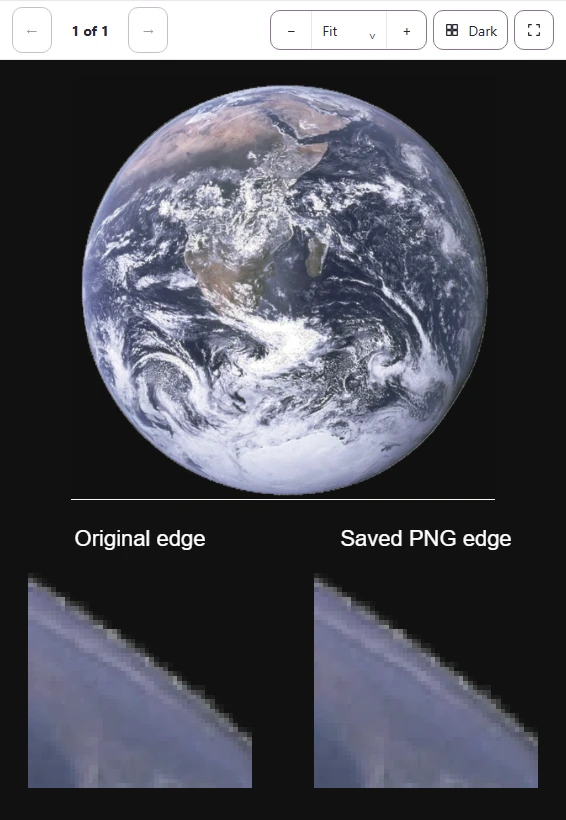
Open the downloaded PNG in the editor or upload form where you need it. Here's the saved cutout open in FluffyBench's Image Viewer as an example.
123
Opened PNG and matching edge details
1
Preview background
Dark makes a white fill or a damaged outline easy to spot.
2
Original edge
Use the source rim as your reference.
3
Saved PNG edge
The transparent rim should blend into the background like the source.
Cropped Image Viewer view with matched original and saved edge details. Keep the original until the PNG works for your use. · Photo: NASA, Public domain, NASA-created image, via Wikimedia Commons.
When a PNG conversion doesn't fit your job
If FluffyBench reports a memory or image-size limit, a very large image may need a smaller source or a desktop editor. If an upload still refuses your output, its pixel dimensions and file-size limit matter as well as its accepted file type.