AVIF converter

Convert images to AVIF; adjust lossy output quality.

FluffyShield Protected workspace
From
To

Convert to

Common

Any image Mix formats in one batch
WebP Small files for the web
JPG Opens anywhere
PNG Lossless with transparency
AVIF Modern web images
JPEG XL JPEG XL images
GIF GIF images

Icons and print

ICO Windows icon
ICNS Mac icon
CUR Cursor image
TIFF Print and archival image
BMP Windows bitmap
APNG Animated PNG image

Game textures

DDS Game texture
KTX GPU texture
KTX2 GPU texture
VTF Valve texture

Your images stay when you change the format. Press Convert again to make the new files.

FluffyShield

Isolated workspace: other page scripts can't read your files. How FluffyShield works

Make AVIF copies in FluffyBench

Make AVIF copies of your JPGs and PNGs on your device, with control over quality and size. Save one picture or a ZIP for an app or website that accepts AVIF.

How it works
  1. Choose images
  2. Adjust Settings
  3. Convert to AVIF
  4. Download one file or a ZIP

What does an AVIF copy do?

AVIF is a picture format built on the compression technology used by AV1 video. Think of it as packing your picture into a different suitcase: how neatly it fits depends on what’s inside.

A source JPG or PNG leads to a separate AVIF copy.
Conversion creates a separate picture file. AVIF doesn't shrink every picture: different packing can take more space. Measurement method and sources

Convert JPG or PNG to AVIF in FluffyBench

Here's the complete job with FluffyBench's default settings. The last two frames show alternative ways to save: one AVIF or a batch in a ZIP.
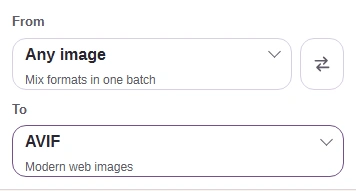
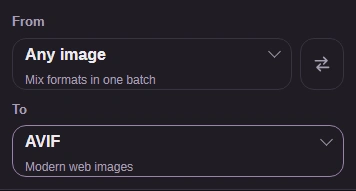
  1. Check that TO says AVIF.
    Check that TO says AVIF.
    Step 1. Check that TO says AVIF.
    1. Choose AVIF here if TO shows another format.
  2. Choose your JPG or PNG. Keep the original for editing.
    Choose your JPG or PNG. Keep the original for editing.
    Step 2. Choose your JPG or PNG. Keep the original for editing.
    1. Choose images opens your device's file picker.
  3. Choose Convert to make your AVIF copy.
    Choose Convert to make your AVIF copy.
    Step 3. Choose Convert to make your AVIF copy with the default settings.
    1. Convert 1 to AVIF makes the copy.
  4. For one picture, Download saves the AVIF.
    For one picture, Download saves the AVIF.
    Step 4. Single-picture ending: Download saves the AVIF.
    1. Save the converted picture to your device.
  5. For a batch, Download all (ZIP) saves the AVIF copies together.
    For a batch, Download all (ZIP) saves the AVIF copies together.
    Step 5. Batch ending instead: Download all (ZIP) saves the AVIF copies together.
    1. Save the converted files in one ZIP.

Check your downloaded AVIF

A saved AVIF needs to fit your destination’s size limit and open in the app or website that will use it.

Two checks shown with a labelled original JPG/AVIF copy size readout and the downloaded AVIF open in FluffyBench Image Viewer.
Example destination: FluffyBench’s Image Viewer lets you inspect a saved copy on your device. · Photo: NPS Photo / Tim Rains, Public domain, via National Park Service.

Adjust Quality before converting (optional)

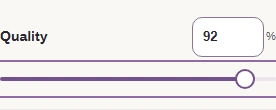
Quality starts at 92; a higher number asks for more detail and can make a larger file.

Here’s the same mountain detail from a JPG, the default quality-92 AVIF, and quality 100.

Matched Denali mountain crops from the original JPG and AVIF at quality 92 and 100, with complete file sizes.
A higher Quality made this photo larger. Compare the texture to decide whether you want that copy. Enlarged matched crops; sizes are for complete files. The top setting still changes pixel values. · Photo: NPS Photo / Tim Rains, Public domain, via National Park Service.

Here are the same PNG text edges beside the two AVIF copies.

Matched interface text crops from the original PNG and AVIF copies at quality 92 and 100.
Enlarged for inspection; sizes are for complete files. Judge small text at the size you’ll actually use it.

Here’s where to change Quality in FluffyBench’s AVIF converter.
  1. Open Settings to adjust your AVIF copy.
    Open Settings to adjust your AVIF copy.
    Step 1. Open Settings to adjust your AVIF copy.
    1. Open Settings before converting.
  2. Start with the default Quality 92.
    Start with the default Quality 92.
    Step 2. Start with the default Quality 92.
    1. Choose Quality; 92 is the default.
  3. On a phone, choose Settings again to close the controls.
    On a phone, choose Settings again to close the controls.
    Step 3. On a phone, choose Settings again to close the controls.
    1. Return to the picture workspace.

Set pixel dimensions or a file-size cap before converting (optional)

Size controls the picture’s width and height in pixels.

Real control screenshots: Original, Percentage with Scale, and Dimensions with Width, Height and Keep aspect ratio. The alternatives stack on narrow screens.
Original keeps the pixel dimensions. Percentage scales both together. Dimensions sets Width and Height; Keep aspect ratio preserves the shape.

These are the two file-size cap controls in Settings.
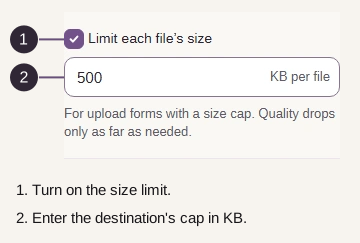
1. Turn on Limit each file’s size. 2. Enter the destination’s cap in KB per file.
A cap lowers quality as needed; pixel dimensions are separate. A tight cap can take several tries while FluffyBench searches for a quality setting that fits.

Keep transparency or choose an animation still (optional)

FluffyBench’s AVIF converter keeps transparency. Here’s the same Earth edge in the original PNG and the default AVIF, over light and dark backgrounds.

Original transparent PNG and measured default AVIF Earth edge, each over a light and a dark background.
Check the edge against the background where you’ll use it. · Photo: NASA, Public domain, NASA-created image, via Wikimedia Commons.

These are the Animated images choices in FluffyBench’s AVIF converter.

The Animated images control beside an illustration of three mule poses for Keep the animation and a single first pose for Still of frame 1.
Keep the animation carries motion, timing and looping into AVIF. Still of frame 1 makes one picture from the start. Selected mule poses illustrate the choices; this isn’t a measured AVIF comparison. · Photo: Eadweard Muybridge, Public domain in the United States, via Wikimedia Commons.

When an AVIF conversion doesn’t fit

If AVIF doesn’t fit your destination, choose the format it asks for. These branches also cover an unexpected output or a conversion that stops.

You got a different output format

FluffyBench AVIF converter

Choose AVIF in TO as shown above; renaming a file doesn’t change its format.

FluffyBench reports a memory limit

FluffyBench AVIF converter

Try a smaller source image. Very large pictures can exceed the memory available to the browser.

FluffyBench can’t convert animated AVIF inputs tagged with wide-gamut, HDR, or ICC color. Read about color profiles.

Your destination’s required format decides which FluffyBench converter helps:

The destination asks for PNG

FluffyBench PNG converter

Make a PNG copy for a destination that needs PNG or exact decoded pixels.

The destination asks for JPG

FluffyBench JPG converter

Make the photo format it requests; JPG fills transparent areas with a color.

The destination asks for WebP

FluffyBench WebP converter

Make a WebP copy, including transparency or animation when needed.

Your destination asks for JPEG XL? FluffyBench’s JPEG XL converter makes that copy.

Search FluffyBench