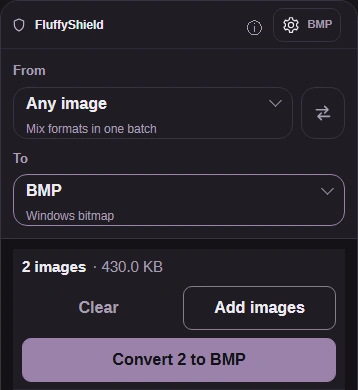
BMP converter

Convert images to BMP; transparency is preserved.

FluffyShield Protected workspace
From
To

Convert to

Common

Any image Mix formats in one batch
WebP Small files for the web
JPG Opens anywhere
PNG Lossless with transparency
AVIF Modern web images
JPEG XL JPEG XL images
GIF GIF images

Icons and print

ICO Windows icon
ICNS Mac icon
CUR Cursor image
TIFF Print and archival image
BMP Windows bitmap
APNG Animated PNG image

Game textures

DDS Game texture
KTX GPU texture
KTX2 GPU texture
VTF Valve texture

Your images stay when you change the format. Press Convert again to make the new files.

FluffyShield

Isolated workspace: other page scripts can't read your files. How FluffyShield works

Need a BMP for another app?

Make a separate BMP copy in FluffyBench without uploading your image. The main choice is whether to keep its transparent background.

What will a BMP copy change?

FluffyBench's BMP output is an uncompressed grid of pixels, like a wall of colored tiles. It writes a color for every square, even where neighboring colors match.
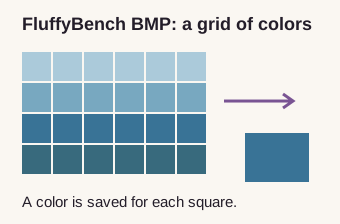
Illustrative grid of colored tiles with one blue tile enlarged, showing that FluffyBench's uncompressed BMP saves a color at every position.
This drawing illustrates the pixel grid; it isn't a crop from a measured image. How we reviewed

That's why a BMP can be much bigger than a JPG showing the same scene. A compressed picture can describe patterns in fewer bytes; FluffyBench's BMP writes out the pixels. Changing the file format doesn't sharpen a blurry photo or recover detail that was lost earlier.

The Lassen Peak photo grew from 201.8 KB as a JPG to 2.7 MB with 32-bit RGBA, or 2.0 MB with 24-bit RGB. Both measured BMPs kept every pixel from the opened photo.

Lassen Peak and Lake Helen with a summit locator and matching source JPG, 32-bit RGBA BMP, and 24-bit RGB BMP detail crops. All three show the same rock detail; the BMP files use more space.
Matched summit details; the sizes belong to the complete JPG and BMP files. · Photo: NPS Photo, Public domain, U.S. federal work; Public Domain Mark 1.0, via Wikimedia Commons / National Park Service.

Which BMP pixels setting should you choose?

Choose 32-bit RGBA when your picture has a clear background or a soft transparent edge. The Earth cutout shows what 24-bit RGB (no alpha) leaves behind.

Source PNG and both BMP outputs on the same checkerboard, each with a matching enlarged view of the globe's left edge. The source and 32-bit output remain clear; the 24-bit output has a black surround.
The checkerboard means clear space; black in the 24-bit BMP is part of the picture. · Photo: NASA, Public domain, NASA-created image, via Wikimedia Commons.

The A in RGBA means alpha: information about how much background can show through each pixel. It covers partly clear pixels around an edge as well as empty space. FluffyBench's default keeps that information; the no-alpha option removes it.

For a fully opaque photo, 24-bit RGB (no alpha) makes a smaller BMP without changing its colors. It can also suit an older app that asks for that layout. Neither choice is a quality level: the difference is the information stored for each pixel.

Keep the original dimensions or resize?

Size changes the picture's dimensions, separately from BMP pixels. Original keeps them; Percentage and Dimensions can shrink or enlarge the picture, depending on the values you choose.
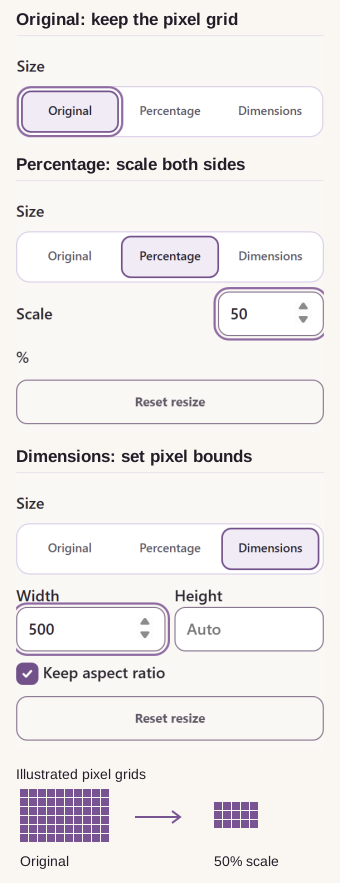
Real BMP Settings controls: Original selected; Percentage selected with Scale at 50%; Dimensions selected with Width 500, Height Auto, and Keep aspect ratio checked. Illustrated pixel grids show the effect of 50% scale.
At 50% scale, each side is halved. The illustrated smaller grid has fewer pixels to store.

Percentage changes width and height together, keeping the picture's proportions. Values under 100 shrink it; values above 100 enlarge it. A smaller picture needs less BMP storage, with less detail available for enlarging or printing.

With Keep aspect ratio checked, Dimensions calculates a missing side from the Width or Height you enter. Here's what changes when you supply both bounds.

The same Lassen Peak photo resized with Width and Height both 300: Keep aspect ratio checked produces a rectangular 300 by 199 BMP; unchecked produces a stretched square 300 by 300 BMP. Real controls accompany both results.
Rendered for illustration. Checked: fit inside the bounds. Unchecked: stretch to fill them. Dashed squares mark the requested bounds, not a border added to the files. · Photo: NPS Photo, Public domain, U.S. federal work; Public Domain Mark 1.0, via Wikimedia Commons / National Park Service.

There isn't a BMP quality slider to turn down. If the receiving app needs the original dimensions, the pixel layout is your remaining size choice here.

Making a BMP in FluffyBench

Here's the job from choosing your pictures to saving the BMP copies.
  1. BMP converter intake with Choose images.
    BMP converter intake with Choose images.
    Step 1. Choose one image or several. Keep your original for later editing. Adding .bmp to a JPG or PNG filename doesn't convert the picture; FluffyBench's BMP converter changes its contents.
    1. Choose images opens your files.
  2. The BMP workspace header with its Settings button.
    The BMP workspace header with its Settings button.
    Step 2. The gear button marked BMP opens Settings on a phone.
    1. Open the gear button marked BMP.
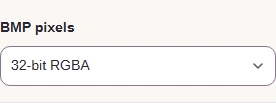
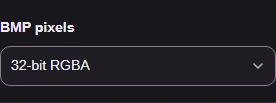
  3. The BMP pixels control set to 32-bit RGBA.
    The BMP pixels control set to 32-bit RGBA.
    Step 3. Choose 32-bit RGBA for the Earth cutout shown here.
    1. BMP pixels chooses the layout.
  4. The BMP gear button with Settings closed and Convert ready below.
    The BMP gear button with Settings closed and Convert ready below.
    Step 4. Close Settings with the BMP gear button, then Convert.
    1. The BMP gear button closes Settings.
    2. Convert makes the BMP copies.
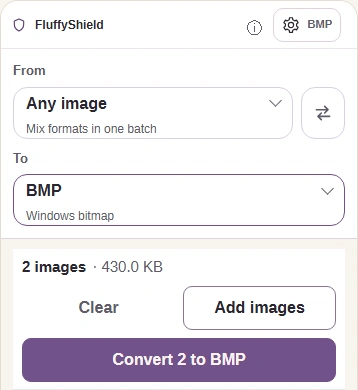
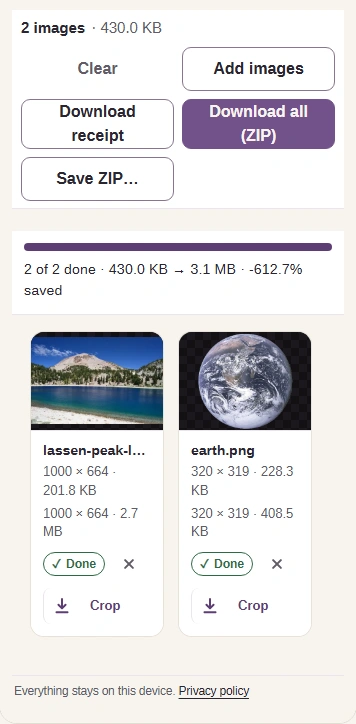
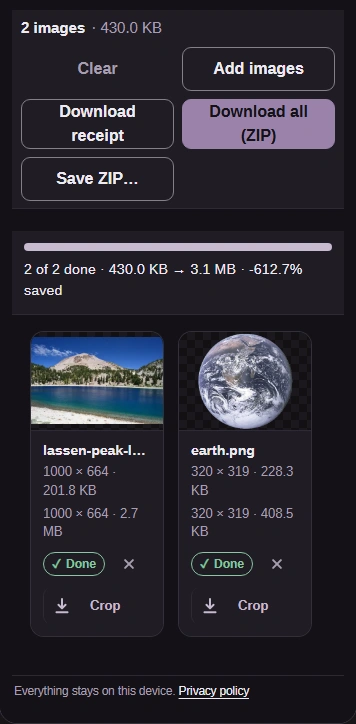
  5. Two completed BMP files with sizes, individual downloads, and Download all ZIP.
    Two completed BMP files with sizes, individual downloads, and Download all ZIP.
    Step 5. Download a BMP from its picture, or save both with Download all (ZIP). The ZIP holds separate BMP files.
    1. Read the BMP's dimensions and file size.
    2. Download saves this BMP.
    3. Download all (ZIP) saves the batch.

What should you check before sending a BMP?

Check that the receiving app opens your BMP, its file size meets the limit, and its detail and edges look right.
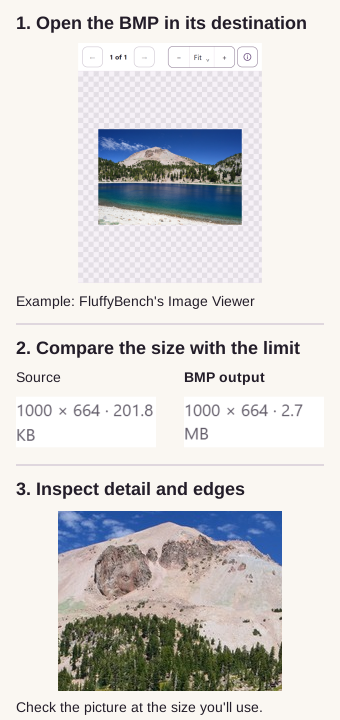
Three checks illustrated with a downloaded BMP open in FluffyBench's Image Viewer, the converter's source and BMP output size readouts, and an enlarged summit detail from the BMP.
The destination example is FluffyBench's Image Viewer; do the opening check in the app that requested your BMP. · Photo: NPS Photo, Public domain, U.S. federal work; Public Domain Mark 1.0, via Wikimedia Commons / National Park Service.

Your BMP is a still picture; animation, editable layers, and source metadata stay in the original.

A BMP can be the wrong fit for a destination's file-size limit or format request. These FluffyBench tools help with those jobs.

FluffyBench says “The image dimensions are too large for BMP output.”

FluffyBench's Image Crop & Resize

Make a smaller picture for a BMP with fewer pixels.

You need a smaller file for an upload.

FluffyBench's Image Space Saver

It helps you reduce file size and choose an output for that limit.

Does your destination ask for a TIFF instead of a BMP?

Search FluffyBench